
ITS is transitioning our AskUs knowledge base to TeamDynamix. While AskUs remains available for reference, we recommend you visit our new TeamDynamix Client Portal for up-to-date knowledge articles and for assistance with your technical issues.
UH VPN setup - iOS (iPad/iPhone/iPod Touch/etc)
The following are instructions on how to connect to the UH VPN service by using the L2TP/IPsec VPN client which is built into the iOS. Depending on what version of iOS you have, there may be minor differences between the appearance of the screenshots and your screen.
Initial configuration (one time only)
- From the Home screen, touch on the Settings icon.
.png)
- Touch on General, then touch on VPN (you may have to scroll down to see the VPN choice), then touch on Add VPN Configuration

- At the next screen, touch on the "Type" option, then touch on "L2TP" to select it. (If you have an older version of iOS, you may just have to touch on "L2TP" to select it.) Touch on "Back" in the upper left corner (it may also say "Add Configuration" instead of "Back").
In the "Description" field, type UH VPN
In the "Server" field, type sevpn.its.hawaii.edu
In the "Account" field, type your UH username. If your email address is help@hawaii.edu, your UH username is help.
In the "Secret" field, type the shared secret. (If you don't know the shared secret, you can obtain it at http://www.hawaii.edu/its/vpn)
Make sure the "Send All Traffic" option is turned on
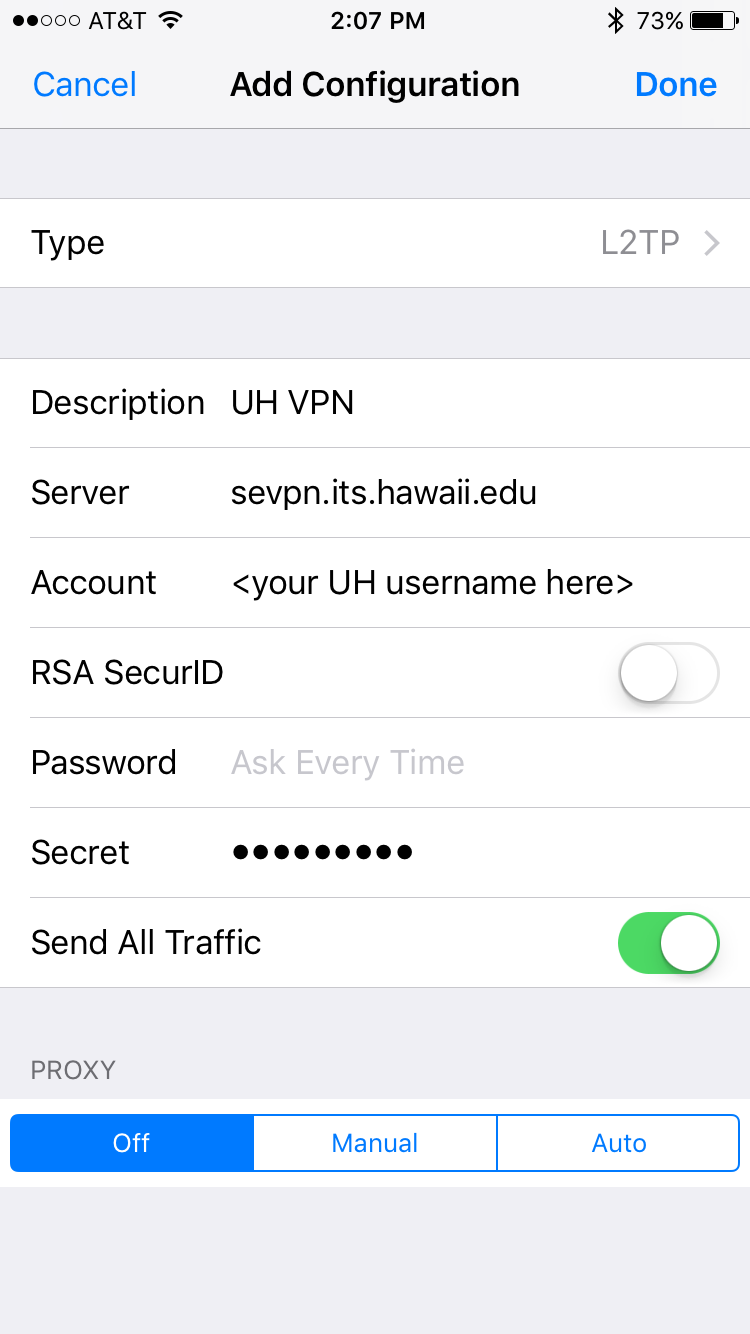
- After doing the items in step 4, touch on "Done" in the upper right. (It may say "Save" instead of "Done".)
Start a VPN connection
- From the Home screen, touch on the Settings icon.
- Touch on VPN
- Make sure that "UH VPN" is checked (selected).
- Turn the "Status" or "VPN" switch on (green).
- You will be prompted for your password. Enter your UH username's password, then touch on "OK" (it may also say "Done").
- You will now be connected to the UH VPN. You can tell you are connected because the "Status" will be "Connected", and there will be a "VPN" in the upper left or right of the screen.

Disconnect a VPN connection
- From the Home screen, touch on the Settings icon.
- Touch on VPN
- Turn the "Status" (or "VPN") switch off (not green).